
Rotate video
Rotate a video
To rotate a video, open it, press Turn left or Turn right on the picture, then export.
- No upload
- No watermark
- No signup
Drop a video here
- MP4
- MOV
- MKV
- WebM
- Any size
It opens on your device and is never uploaded.
How to rotate a video
 By Milind Sahu, tested on real iPhone and Android videos. Updated .
The turn is written into the file and every frame is copied, not re-encoded, so quality stays the same. Your video is never uploaded: it is turned in your browser, free, with no signup and no watermark.
- Step 1
Open your video
Drop a video on the editor or choose it from your files. Nothing is uploaded: it opens right here, even a long one.
- Step 2
Turn it the right way up
Press Turn left or Turn right on the picture until it stands the right way. Each press is a quarter turn, and the picture turns at once.
- Step 3
Export and download
Press Export MP4. Every frame is copied into a new MP4 that plays turned, ready to download.
How can a video turn without re-encoding?
A video file carries a small instruction that tells players which way up to show the picture. Phones write it when you film holding the phone sideways or upside down.
Rotating here rewrites that instruction and copies every frame as it is. So the file stays the same size, and Chrome, Safari, Firefox and QuickTime all show it turned.
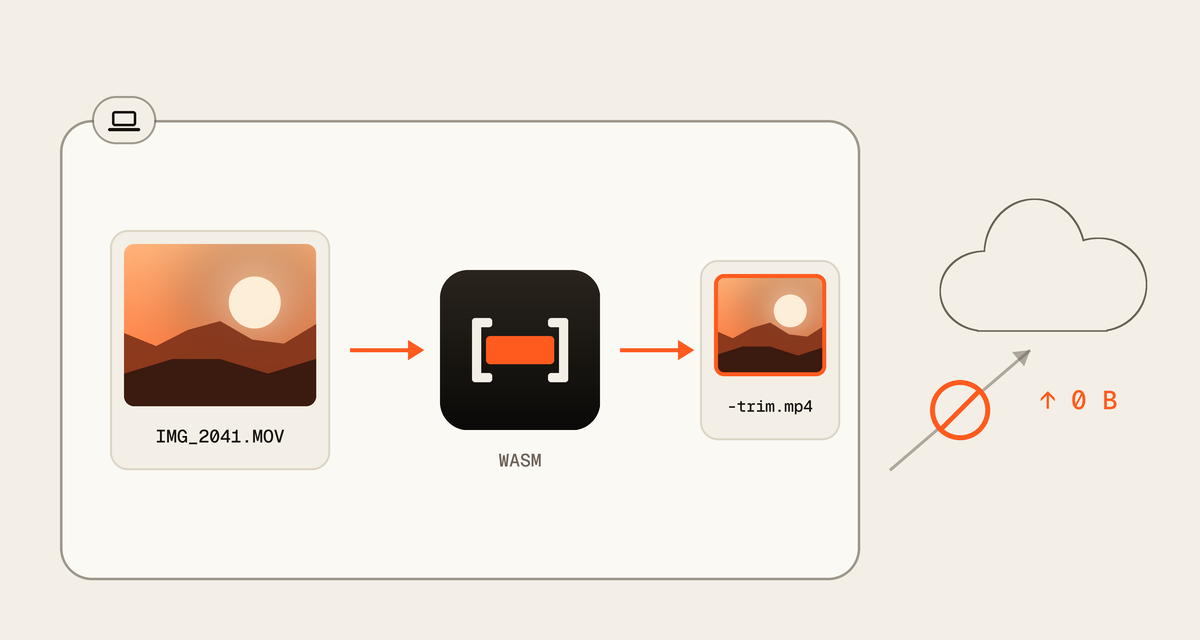
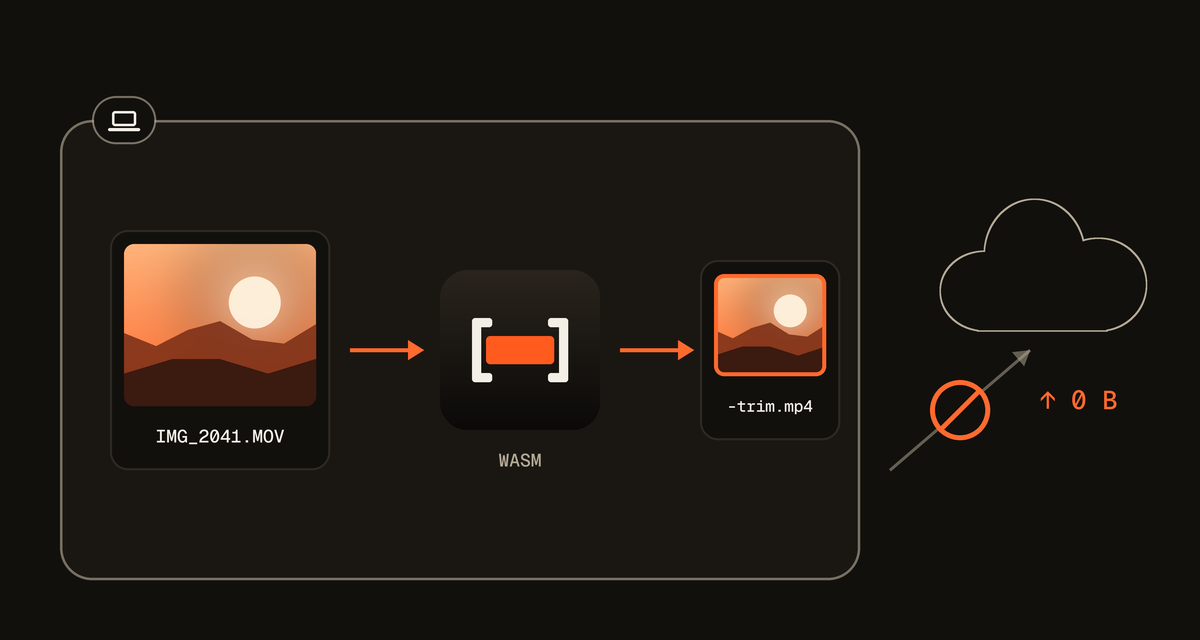
Your video never leaves your device
Many online cutters upload your file first. QuickVideoCutter.com works inside your browser, so there is no upload to wait for and no copy of your video anywhere else.
Questions
Something else? Contact us
How do I rotate a video?
To rotate a video, open it above and press Turn right or Turn left on the picture until it is the right way up. Then press Export MP4, and the turned video downloads to your device.
Does rotating a video lose quality?
Rotating a video here does not lose quality. The frames are copied byte for byte and only the instruction that says which way up to show them changes, so picture, bitrate and frame rate stay exactly as they were.
Why is my video sideways or upside down?
A sideways video usually comes from a phone that guessed the wrong way up, often because it lay flat or was still turning when you started filming. Turn it here once and it stays the right way.
Can I rotate a video by 90 or 180 degrees?
You can rotate a video by 90, 180 or 270 degrees here. Each press of Turn right adds 90 degrees and each press of Turn left takes 90 away. Four presses bring it back to the original.
Can I flip or mirror a video?
Flipping or mirroring a video is not something this page does. It turns the picture by quarter turns only, so text and faces never come out back to front.
Is my video uploaded?
Your video is never uploaded. The file opens in your browser and is turned on your device. Nothing the page sends ever includes the file or its name.