
Remove audio
Remove audio from video
To remove audio from a video, open it and press Remove audio: you get the same video with no sound track at all.
- No upload
- No watermark
- No signup
Drop a video here
- MP4
- MOV
- MKV
- WebM
- Any size
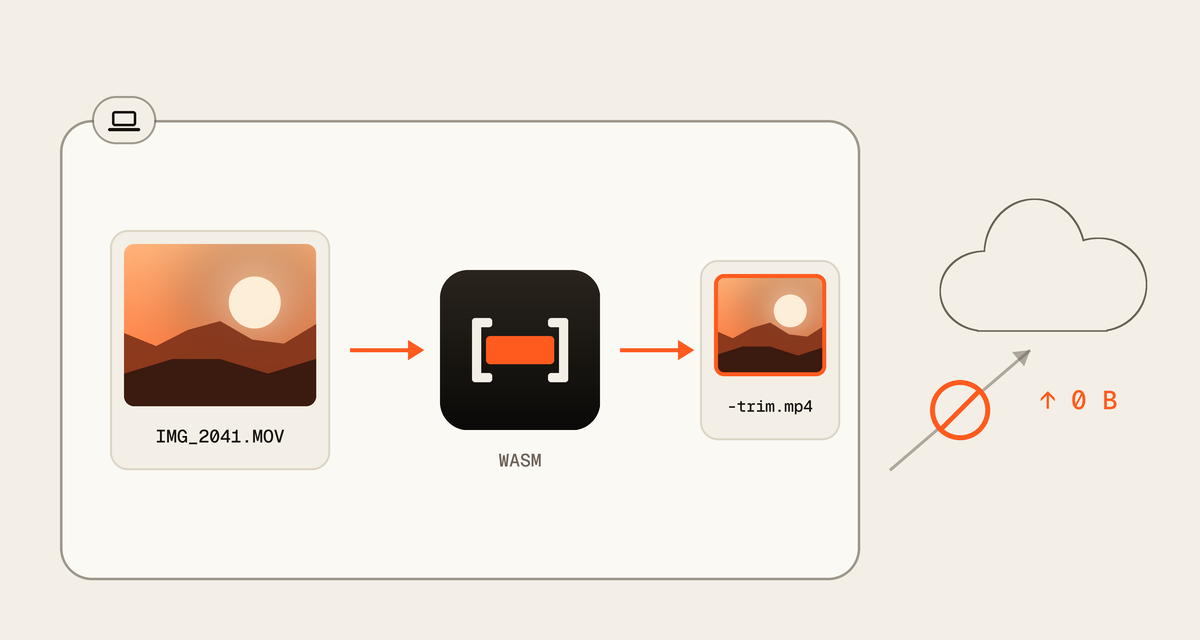
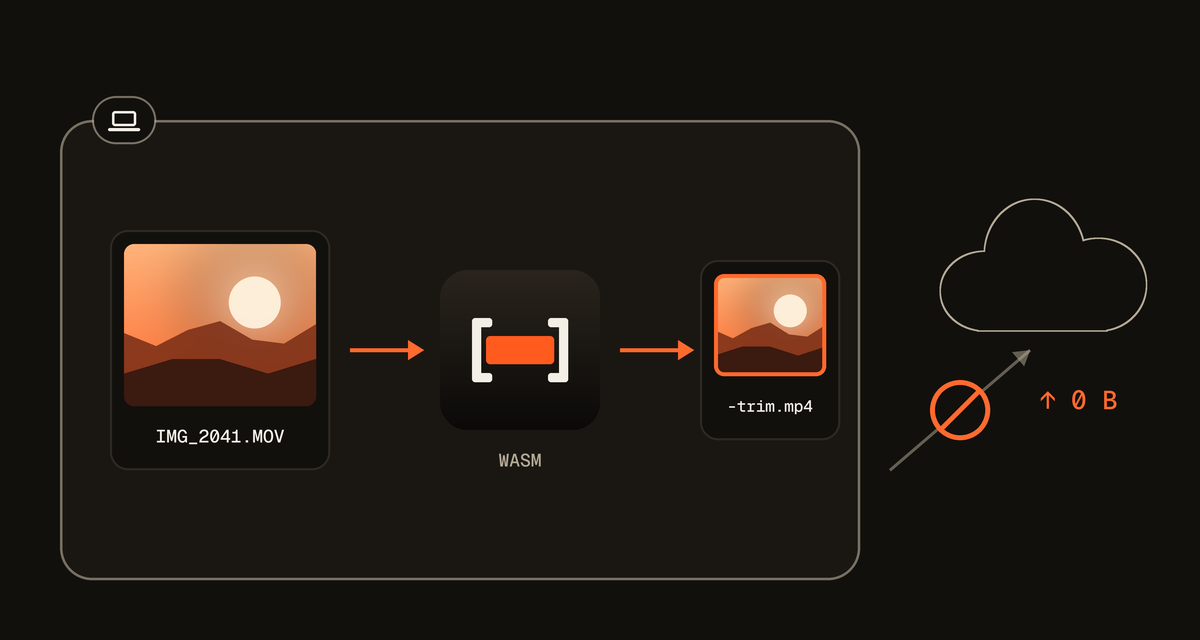
It opens on your device and is never uploaded.
How to remove audio from a video
 By Milind Sahu, tested on real iPhone and Android videos. Updated .
The picture is copied, not re-encoded, so it looks exactly the same. Your video is never uploaded: it is muted in your browser, free, with no signup and no watermark.
- Step 1
Open your video
Drop a video on the editor or choose it from your files. Nothing is uploaded: it opens right here, even a long one.
- Step 2
Check what is kept
The panel lists what stays, the video with its length and quality, and what goes: the sound, and how much smaller the file gets.
- Step 3
Remove and download
Press Remove audio. The video is copied into an MP4 with no sound track, ready to download.
Is a muted video the same as one with no audio?
Some editors mute a video by keeping its sound track and filling it with silence. The file stays about as big, and players and upload forms still see audio in it.
Here the sound track is taken out. The file gets smaller by the size of the sound, and anything that opens it finds a video with no audio at all.
Your video never leaves your device
Many online cutters upload your file first. QuickVideoCutter.com works inside your browser, so there is no upload to wait for and no copy of your video anywhere else.
Questions
Something else? Contact us
How do I remove audio from a video?
To remove audio from a video, open it above and press Remove audio. The video is copied into a new MP4 with no sound track, and it downloads to your device.
Does removing the audio lower the video quality?
Removing the audio does not lower the video quality. The video is copied byte for byte, not re-encoded, so picture, bitrate and frame rate stay exactly as they were.
Can I mute only part of a video?
Muting only part of a video is not something this page does: it removes the whole sound track. To drop a part of the video itself, sound and all, use Remove part.
What if my video has more than one audio track?
A video with more than one audio track loses every audio track, so a second language or a commentary goes too. The panel says how many tracks are removed before you export.
Which videos can have their audio removed?
H.264, HEVC, VP9 or AV1 video in an MP4, MOV, MKV or WebM file can lose its sound here, whatever the sound is. A video with no sound, or one that can't be copied, says so first.
Is my video uploaded?
Your video is never uploaded. The file opens in your browser and its sound is removed on your device. Nothing the page sends ever includes the file or its name.