
Remove part of a video
Remove part of a video
To remove part of a video, open it, mark each section you want gone, and export.
- No upload
- No watermark
- No signup
Drop a video here
- MP4
- MOV
- M4V
- Any size
It opens on your device and is never uploaded.
How to remove part of a video
The parts you keep are joined into one MP4 from the original frames, so quality stays the same. Your video is never uploaded: it is cut in your browser, free and without a watermark.
- Step 1
Open your video
Drop a video on the editor or choose one from your files. Nothing is uploaded: it opens right here, even a long 4K video.
- Step 2
Mark what to remove
Drag the orange handles around the first unwanted part. Press New section for each further part, and use the arrows to move between them.
- Step 3
Export and download
The parts you keep are joined into one MP4. Nothing is re-encoded, so the picture and sound are the original ones.
Why a removed section can end a little later
A video is stored in groups of frames, and each group begins with a keyframe. The part after a removed section has to start on one, or it would need re-encoding.
So QuickVideoCutter.com removes up to the next keyframe, shows the extra part striped, and tells you how much. A section's start stays where you put it, within a few frames.
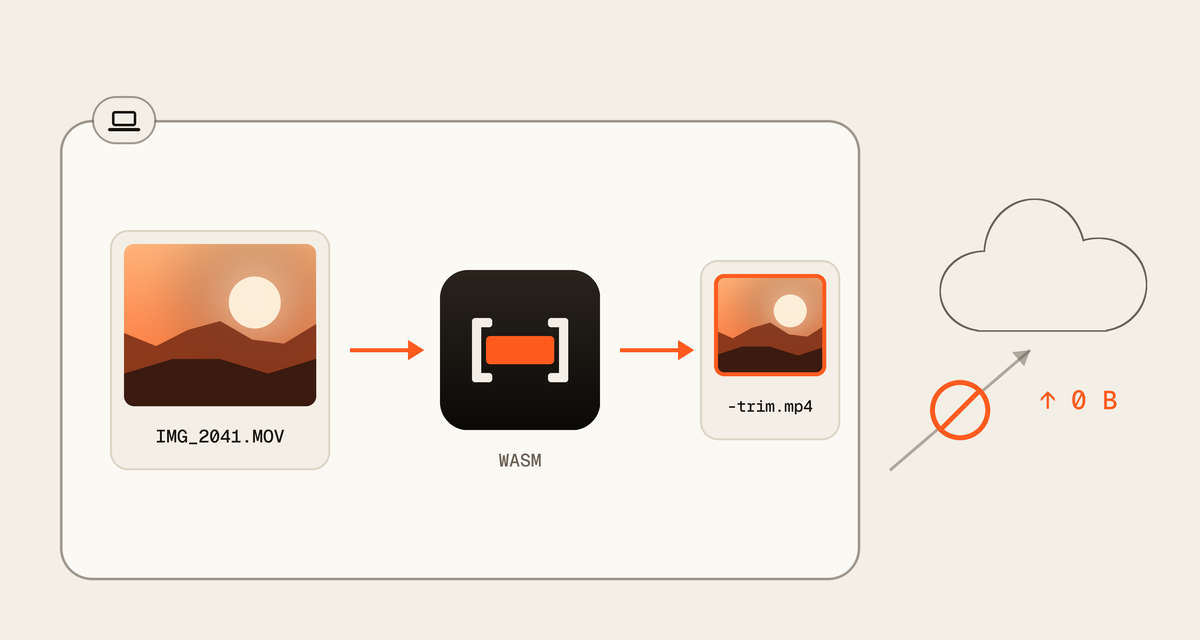
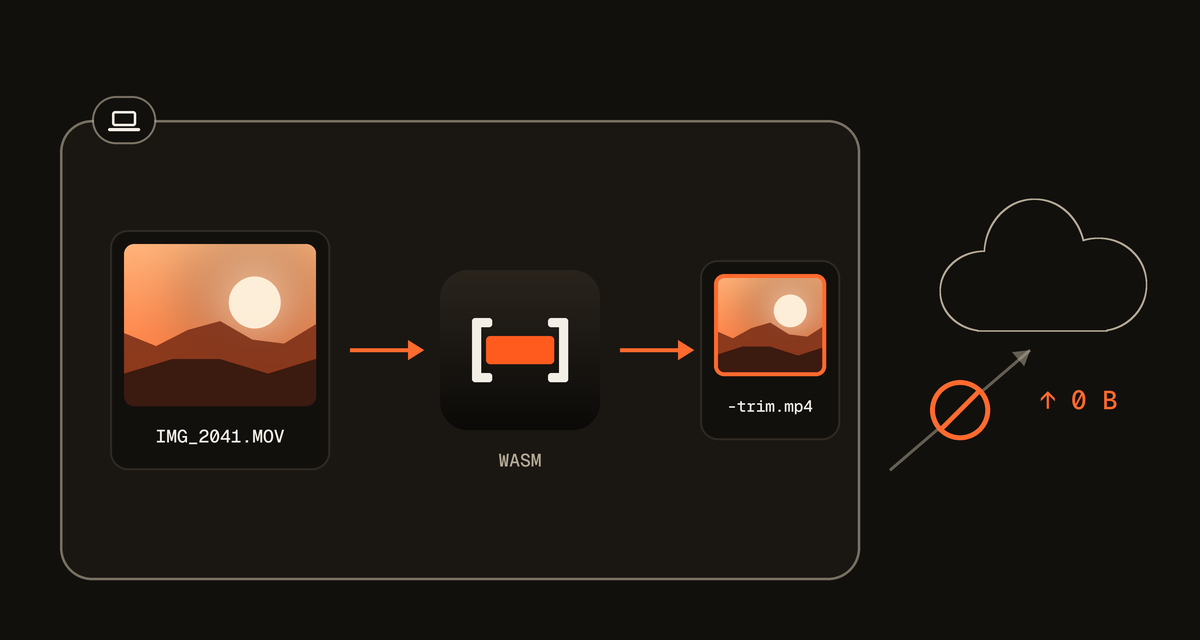
Your video never leaves your device
Many online cutters upload your file to their servers first. QuickVideoCutter.com does all the work inside your browser, so there is no upload to wait for and no copy of your video anywhere else.
Questions
Something else? Contact us
How do I cut out the middle of a video?
Open the video above, drag the handles around the part in the middle you want gone, and export. The part before it and the part after it are joined into one MP4.
Can I remove several parts at once?
Yes. Press New section for each part you want gone. Every section is removed, and what is left is joined in order into one file.
Does removing parts lower the quality?
No. The kept parts are copied byte for byte, not re-encoded, so picture, bitrate and frame rate stay exactly as they were.
Is my video uploaded?
No. The file opens in your browser and is cut on your device. Nothing the page sends ever includes the file or its name.
Ready to remove part of your video?
Choose a videoLast updated: