
Merge videos
Merge videos
To merge videos, choose them all at once, put them in order on the timeline, then export one MP4.
- No upload
- No watermark
- No signup
Drop your videos here
- MP4
- MOV
- Two or more
- Any size
Pick them all at once. They open on your device and are never uploaded.
How to merge videos
 By Milind Sahu, tested on real iPhone and Android videos. Updated .
Every frame is copied, not re-encoded, so quality stays the same. Your videos are never uploaded: they are joined in your browser, free, with no signup and no watermark.
- Step 1
Choose your videos
Pick two or more videos at once, or drop them on the editor. Nothing is uploaded: they open right here, and Add puts more after the last.
- Step 2
Put them in order
Drag a video along the timeline, or select it and press Earlier or Later. A video that can't join is marked, with the reason beside it.
- Step 3
Export and download
Press Merge videos. Every frame of every video is copied, in order, into one new MP4, ready to download.
Why can some videos not be merged without re-encoding?
A video file stores its decoder settings once, at the start: the format, the picture size, and how it was encoded. Joining by copy means one set of settings has to play every video.
So videos join here when they were recorded the same way, with the same turn and the same kind of sound. When one differs, the page names that video and the difference before you export, instead of quietly re-encoding it.
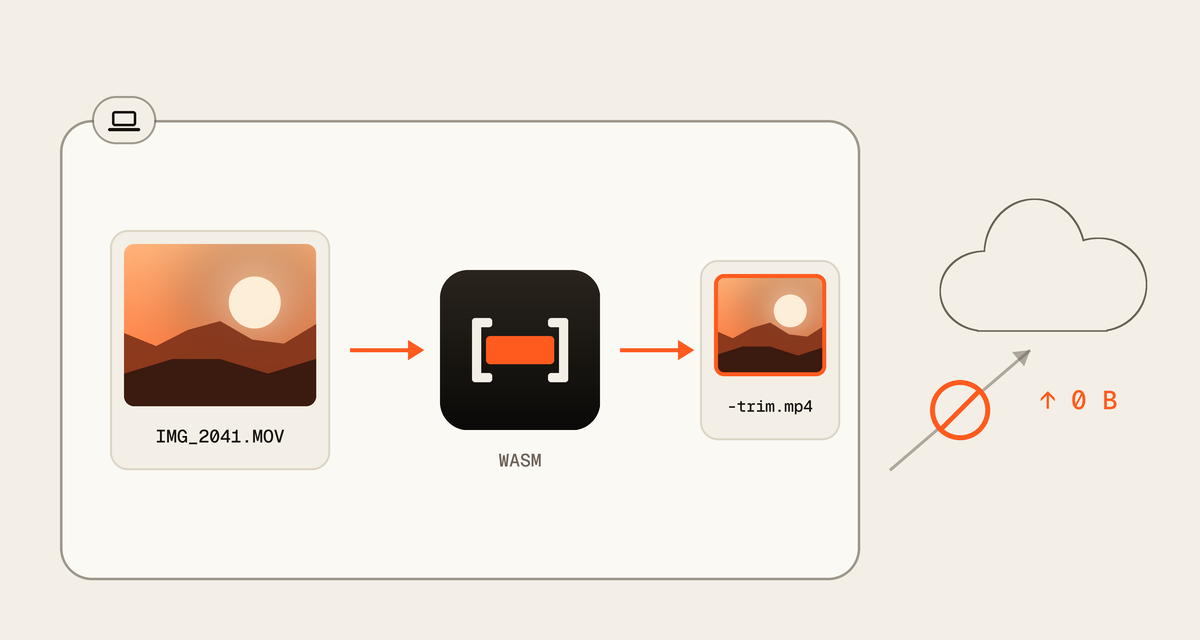
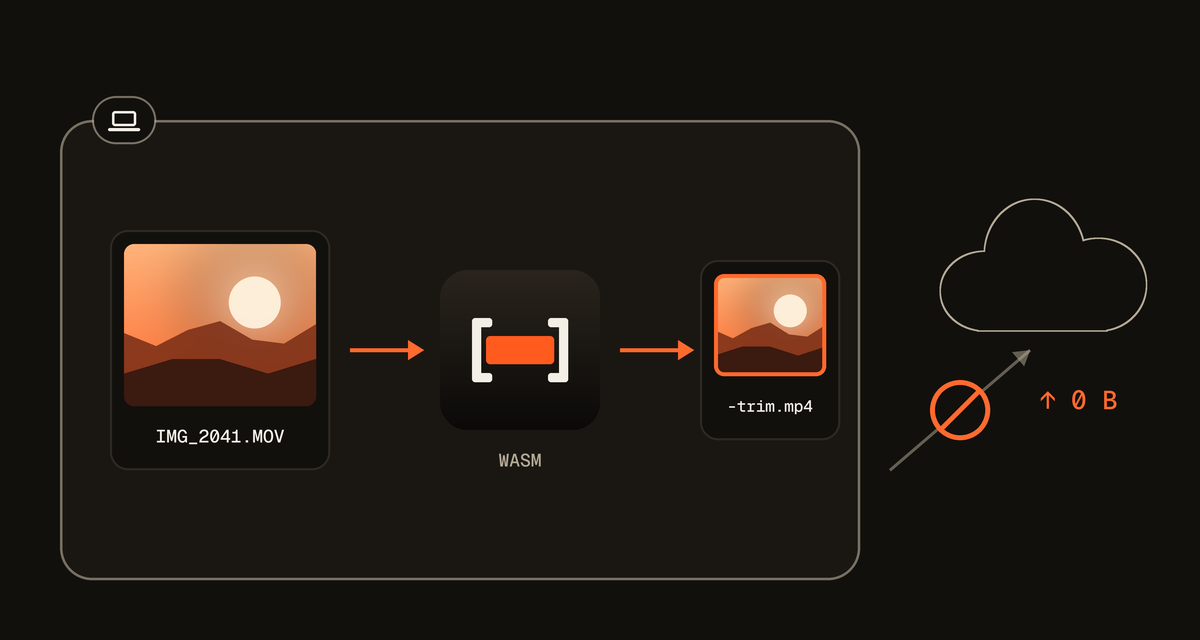
Your video never leaves your device
Many online cutters upload your file first. QuickVideoCutter.com works inside your browser, so there is no upload to wait for and no copy of your video anywhere else.
Questions
Something else? Contact us
How do I merge videos?
To merge videos, choose them above, put them in the order you want on the timeline, and press Merge videos. They are joined into one MP4 that downloads to your device.
Does merging videos lose quality?
Merging videos here does not lose quality. Every frame of every video is copied byte for byte into the new file, so picture, bitrate and frame rate stay exactly as they were.
Why can't my videos be merged?
Videos that can't be merged here differ in something a copy can't change: the format, the picture size or how it was encoded, the turn, or the sound. The page names which video and what differs.
Can I change the order of the videos?
You can change the order of the videos by dragging one along the timeline, or by selecting it and pressing Earlier or Later. Remove takes the selected video out.
Can I trim a video before merging?
You can trim a video before merging it: trim it on the trim page first, download it, then add the trimmed file here. Each video is joined whole, from its first frame to its last.
Are my videos uploaded?
Your videos are never uploaded. The files open in your browser and are joined on your device. Nothing the page sends ever includes a file or its name.